
Introduction
Every day, millions of people with disabilities navigate the web using assistive technologies like screen readers, voice recognition software, and specialized keyboards. When your website isn't accessible, you're not just creating frustration—you're turning away potential customers and exposing your business to legal risks.
Web accessibility isn't a nice-to-have feature anymore. It's a fundamental requirement for any business that wants to serve all customers equally and stay compliant with evolving legal standards.
The Web Content Accessibility Guidelines (WCAG) provide the roadmap for creating websites that everyone can use, regardless of their abilities. These internationally recognized standards help businesses understand what accessibility means in practical terms and how to implement it effectively.
Many business owners feel overwhelmed when they first encounter WCAG standards. The technical language and detailed criteria can seem daunting. But the core principles are straightforward: make your content perceivable, operable, understandable, and robust for all users.
This guide breaks down everything you need to know about WCAG compliance. You'll learn which standards apply to your business, how to implement them, and why accessibility makes good business sense beyond just avoiding lawsuits.
Whether you're building a new website or improving an existing one, understanding web accessibility will help you reach a broader audience and create a better user experience for everyone. The investment in accessibility pays dividends through increased customer loyalty, improved SEO, and reduced legal exposure.
Let's explore how WCAG standards can transform your website into an inclusive digital space that welcomes all visitors.
Understanding Web Accessibility and Its Business Impact
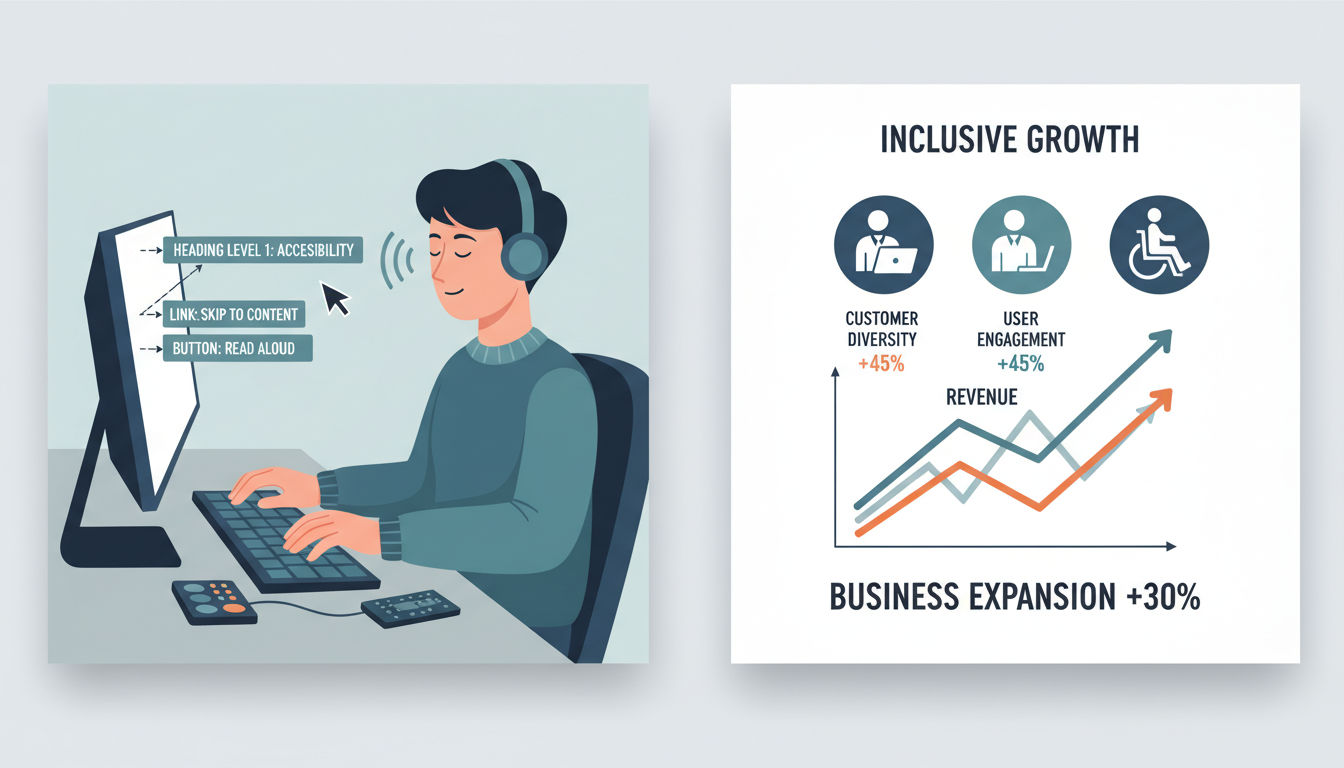
Web accessibility means designing and developing websites, tools, and technologies so that people with disabilities can use them effectively. This includes individuals with visual, auditory, physical, speech, cognitive, and neurological disabilities.
Think of accessibility as removing barriers. Just as a physical store needs ramps and wide aisles for wheelchair users, your website needs digital accommodations for people using assistive technologies.
What is Web Accessibility?
Web accessibility encompasses a wide range of considerations. A blind user might navigate your site using a screen reader that converts text to speech. Someone with motor disabilities might use only a keyboard instead of a mouse. People with color blindness need sufficient contrast to distinguish between elements.
The scope extends beyond permanent disabilities. Temporary conditions like a broken arm or situational limitations like bright sunlight on a screen also benefit from accessible design. When you build for accessibility, you're actually improving usability for everyone.
The ROI of Accessible Design
Accessible websites reach a larger market. According to the CDC, 26% of adults in the United States live with some type of disability. That's over 61 million potential customers who might struggle with or completely abandon inaccessible websites.
The business benefits extend beyond this demographic. Accessible design principles often align with SEO best practices. Proper heading structures, descriptive link text, and well-organized content help both screen readers and search engines understand your site better.
User experience improves across the board when you implement accessibility features. Captions on videos help people in noisy environments or those who prefer reading. Clear navigation benefits everyone, not just people using assistive technologies. Keyboard navigation speeds up workflows for power users.
Companies that prioritize accessibility often see reduced bounce rates and increased conversion rates. When your site works for everyone, more visitors complete their intended actions—whether that's making a purchase, filling out a contact form, or signing up for your newsletter.
Legal Risks and ADA Compliance Requirements
The Americans with Disabilities Act (ADA) requires businesses to provide equal access to goods and services. Courts have increasingly interpreted this to include websites, especially for businesses serving the public.
Website accessibility lawsuits have surged in recent years. In 2022 alone, over 3,200 federal lawsuits were filed related to website accessibility. These cases often result in settlements ranging from $5,000 to over $100,000, plus the cost of remediation and legal fees.
The legal landscape continues to evolve. While the ADA doesn't explicitly mention websites, the Department of Justice has indicated that web accessibility is required under Title III. Many courts have ruled that websites must be accessible, particularly for businesses with physical locations.
Beyond federal law, many states have their own accessibility requirements. California's Unruh Civil Rights Act and New York's human rights laws have been used successfully in website accessibility cases.
The risk isn't just about lawsuits. Your brand reputation suffers when people with disabilities can't access your services. In today's connected world, negative experiences spread quickly through social media and review sites.
Proactive compliance protects your business and demonstrates your commitment to serving all customers. Working with experienced web development professionals can help you navigate these requirements and implement solutions that meet both legal standards and user needs.
WCAG Standards Explained: Levels A, AA, and AAA
The Web Content Accessibility Guidelines provide a single shared standard for web content accessibility. Developed by the World Wide Web Consortium (W3C), these guidelines have become the international benchmark for accessibility compliance.
WCAG 2.1, the current widely adopted version, builds on WCAG 2.0 with additional criteria addressing mobile accessibility, people with low vision, and people with cognitive and learning disabilities. Understanding these standards helps you determine what your website needs to achieve.
Breaking Down WCAG 2.1 Guidelines
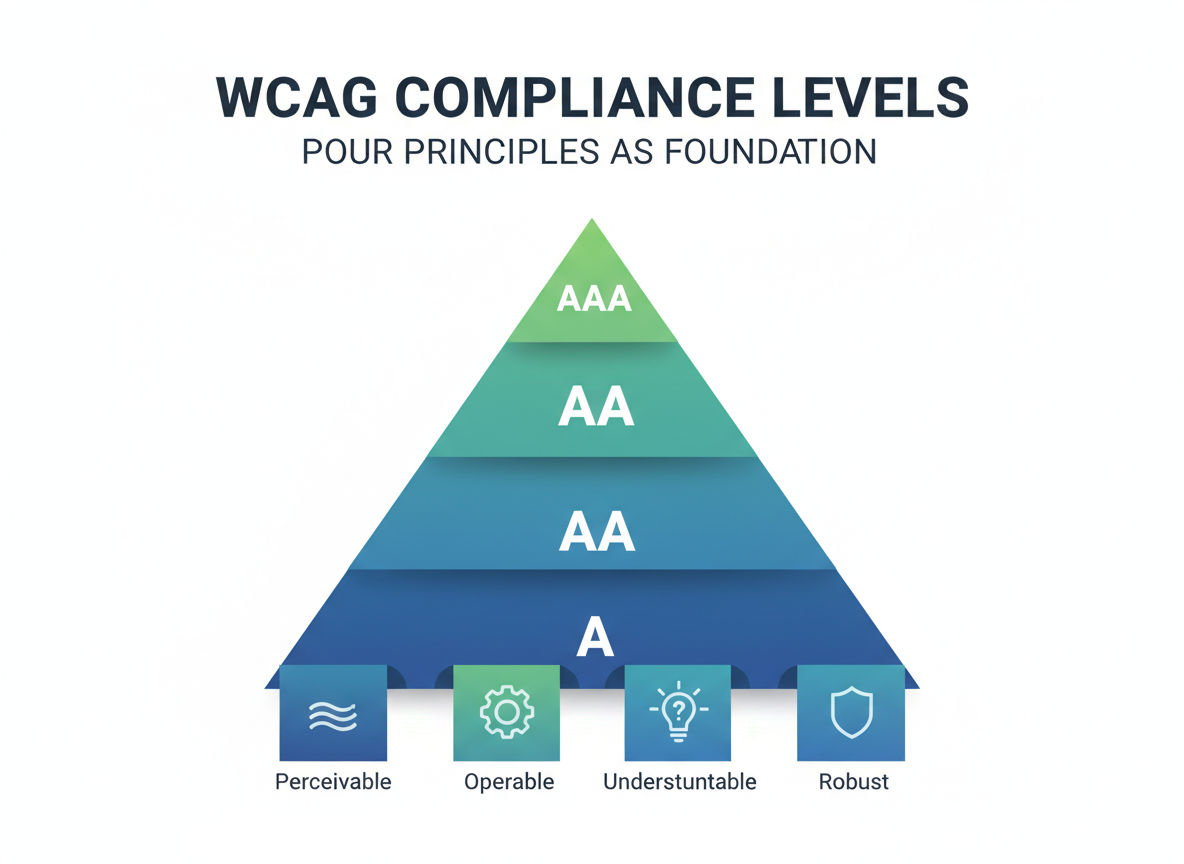
WCAG organizes accessibility requirements into three conformance levels: A, AA, and AAA. Each level builds on the previous one, with Level A being the minimum and Level AAA being the most stringent.
Level A represents the most basic web accessibility features. Meeting only Level A means your site has significant accessibility barriers for many users. This level includes requirements like providing text alternatives for images and ensuring content isn't solely conveyed through color.
Level AA is the standard most organizations aim for and what most laws reference. This level includes all Level A criteria plus additional requirements like sufficient color contrast ratios and consistent navigation. Level AA strikes a balance between accessibility and feasibility for most websites.
Level AAA represents the highest level of accessibility. While ideal, many organizations find full AAA compliance impractical because some criteria can't be satisfied for all content. For example, requiring sign language interpretation for all audio content or ensuring text can be resized up to 200% without assistive technology may not be realistic for every situation.
Most legal standards and best practices recommend Level AA compliance as the target. This provides substantial accessibility improvements while remaining achievable for most businesses.
Which Compliance Level Does Your Business Need?
The answer depends on your industry, audience, and risk tolerance. Government websites and educational institutions often must meet Level AA as a minimum requirement. Many countries have laws mandating WCAG 2.1 Level AA for public sector websites.
Private businesses should also target Level AA compliance. This level addresses the needs of most users with disabilities while being technically and economically feasible. Courts have referenced WCAG 2.0 Level AA in website accessibility cases, establishing it as a reasonable standard.
Some industries or specific use cases may warrant pursuing Level AAA for certain content. Healthcare providers, financial institutions, and educational platforms might implement higher standards for critical user journeys or sensitive information.
Starting with Level A and progressively enhancing to Level AA makes sense for many businesses. This phased approach lets you address the most critical barriers first while planning for comprehensive compliance.
The Four Core Principles: POUR
WCAG organizes all its guidelines under four fundamental principles, remembered by the acronym POUR. These principles form the foundation of web accessibility and help you think about accessibility holistically.
Perceivable means users must be able to perceive the information being presented. Content can't be invisible to all their senses. This includes providing text alternatives for images, captions for videos, and ensuring content can be presented in different ways without losing meaning.
Operable requires that users can operate the interface. Components and navigation must be usable. This means all functionality must be available from a keyboard, users need enough time to read and use content, and content shouldn't cause seizures through flashing elements.
Understandable mandates that information and operation of the user interface must be understandable. Text should be readable, content should appear and operate in predictable ways, and users should receive help avoiding and correcting mistakes.
Robust means content must be robust enough to be interpreted reliably by a wide variety of user agents, including assistive technologies. As technologies evolve, your content should remain accessible. This primarily involves using clean, valid code that assistive technologies can parse correctly.
Every WCAG success criterion falls under one of these principles. When you're making accessibility decisions, asking whether your solution is perceivable, operable, understandable, and robust helps guide you toward compliant implementations.
Quick question
Want to turn this into a real plan?
If you want expert help with strategy, design, development, marketing, or automation — we’ll recommend the fastest path forward for your goals.
Essential WCAG Compliance Requirements for Businesses
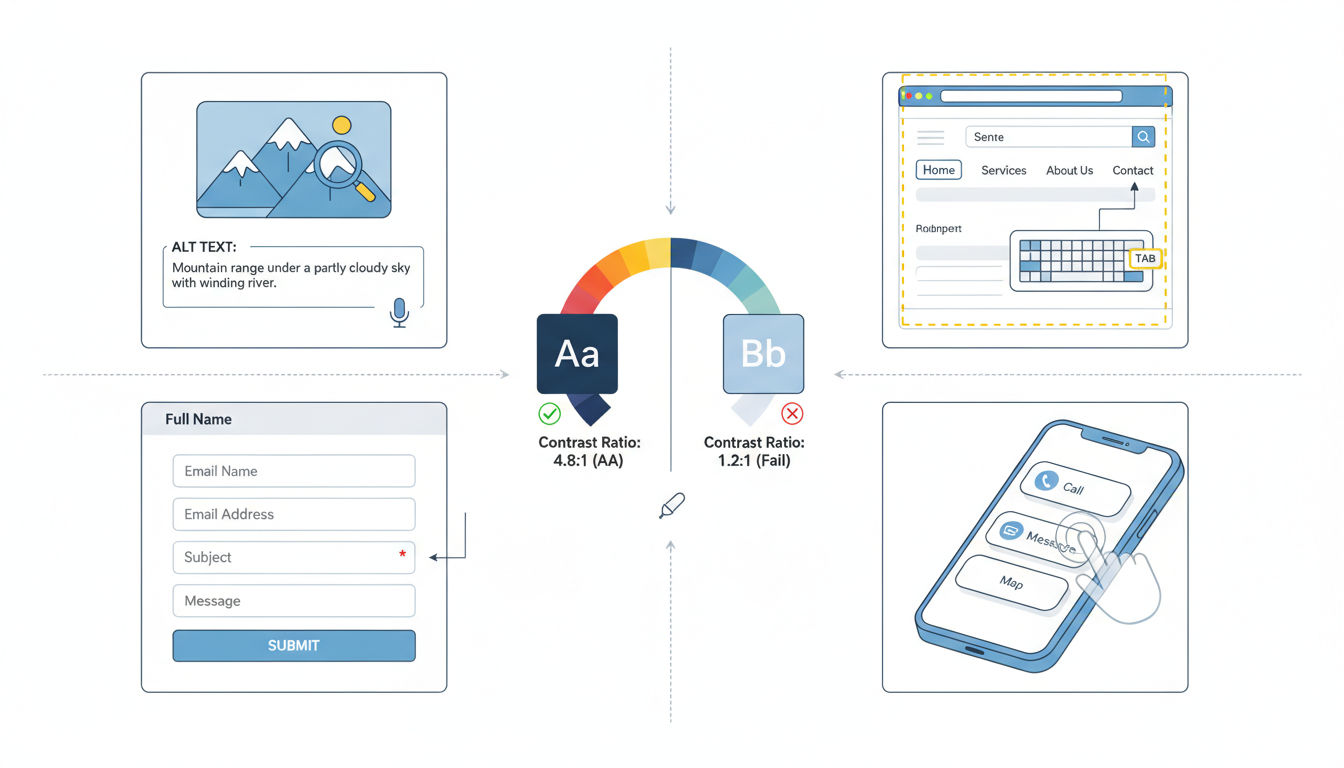
Understanding the specific requirements within WCAG helps you translate principles into action. While the complete guidelines contain dozens of success criteria, certain requirements form the foundation of an accessible website.
These essential elements address the most common barriers people with disabilities encounter. Implementing them correctly will resolve the majority of accessibility issues on most business websites.
Text Alternatives and Multimedia Accessibility
Every non-text element on your website needs a text alternative that serves the equivalent purpose. This is one of the most fundamental WCAG requirements and affects nearly every website.
Images require alt text that describes their content or function. Decorative images should have empty alt attributes so screen readers skip them. Informative images need descriptions that convey the same information a sighted user would receive. For complex images like charts or diagrams, you may need longer descriptions in addition to alt text.
Logos and linked images need alt text that identifies the destination or purpose. Your company logo might use alt text like "Company Name Home" when it links to your homepage.
Videos require captions for deaf and hard-of-hearing users. Captions must include not just dialogue but also important sound effects and speaker identification. Pre-recorded video content also needs audio descriptions or a text transcript describing visual information not available in the audio track.
Audio-only content like podcasts needs transcripts. These should be easily findable and include speaker identification and relevant non-speech sounds.
Live video streams should include real-time captions when possible. While this presents technical challenges, it's increasingly expected for webinars and live events.
Keyboard Navigation and Interactive Elements
Many people can't use a mouse due to motor disabilities, visual impairments, or other conditions. Your entire website must be fully functional using only a keyboard.
All interactive elements—links, buttons, form fields, menus—must be reachable using the Tab key. The tab order should follow a logical sequence that matches the visual layout. Users should never get trapped in a component without a keyboard method to escape.
Focus indicators show users where they are on the page when navigating by keyboard. The default browser focus outline is often sufficient, but many sites customize it for better visibility. Never remove focus indicators without providing an alternative that meets contrast requirements.
Dropdown menus and expandable sections must work with keyboard alone. Arrow keys typically navigate menu items, Enter or Space activates links or buttons, and Escape closes menus or dialogs.
Skip navigation links help keyboard users bypass repetitive content. A "Skip to main content" link at the top of each page lets users jump directly to the primary content without tabbing through your entire navigation menu.
Custom interactive widgets like sliders, tabs, and accordions need careful implementation. They should follow established keyboard patterns that users expect. The ARIA Authoring Practices Guide provides patterns for common widgets.
Color Contrast and Visual Design Standards
Sufficient color contrast between text and background ensures readability for people with low vision or color blindness. WCAG specifies minimum contrast ratios based on text size and weight.
Normal text requires a contrast ratio of at least 4.5:1 against its background. Large text—18pt and larger, or 14pt and larger if bold—needs a minimum ratio of 3:1. These ratios ensure text remains readable for people with moderately low vision.
Contrast requirements apply to all text, including text in images. If you embed text in graphics, those graphics must meet contrast standards or provide a high-contrast alternative.
Interactive elements like buttons and form fields need sufficient contrast for their visible boundaries. Icons and graphical elements that convey information also need adequate contrast.
Color alone can't be the only way you convey information. If you use red text to indicate errors, you also need an icon or text label. If color distinguishes different categories in a chart, you also need patterns or labels.
Link text should be visually distinguishable from surrounding text through more than just color. Underlining remains the most universally recognized link indicator. If you remove underlines, ensure links have sufficient color contrast with both the background and surrounding text, plus a non-color identifier on focus or hover.
Form Labels and Error Identification
Forms are critical conversion points where accessibility problems directly impact your business goals. Accessible forms help all users complete tasks successfully.
Every form field needs a visible label that clearly describes what information is required. Labels should be programmatically associated with their fields using the <label> element or ARIA attributes. Placeholder text alone doesn't meet this requirement because it disappears when users start typing.
Required fields must be clearly identified. Don't rely solely on color or asterisks—include the word "required" in the label or provide clear instructions before the form.
When users make errors, identification must be clear and helpful. Error messages should explain what went wrong and how to fix it. Generic messages like "Invalid input" don't help users understand the problem.
Error identification should be perceivable without relying on color alone. Use icons, text labels, and clear messaging. Position error messages near the relevant fields so users can easily connect the error to its location.
Provide suggestions for fixing errors when possible. If a password doesn't meet requirements, list the specific requirements it's missing. If a date format is wrong, show the expected format.
Instructions and labels should be clear and concise. Avoid jargon and explain any unusual requirements before users encounter errors. The easier you make it to complete forms correctly the first time, the better the experience for everyone.
Mobile Accessibility Considerations
Mobile accessibility has become increasingly important as more users access websites on smartphones and tablets. WCAG 2.1 added several criteria specifically addressing mobile concerns.
Touch targets must be large enough to activate easily. A minimum size of 44x44 pixels is recommended for interactive elements. Adequate spacing between targets prevents accidental activation of the wrong element.
Content must be usable in both portrait and landscape orientations unless a specific orientation is essential to functionality. Users with mounted devices or certain disabilities may be unable to rotate their devices.
Gestures requiring fine motor control should have alternatives. Swipe, drag, and multi-finger gestures should offer simpler alternatives like taps or buttons. This helps users with motor disabilities and those using assistive technologies.
Text must be resizable without loss of content or functionality. Users should be able to zoom to 200% without horizontal scrolling on mobile devices. Avoid fixed viewport settings that prevent zooming.
Mobile forms require the same accessibility considerations as desktop forms, plus appropriate input types that trigger the right keyboard. Use type="email" for email fields, type="tel" for phone numbers, and type="number" for numeric input to provide users with optimized keyboards.
Implementing Accessible Design in Your Website

Understanding WCAG requirements is just the beginning. Successful implementation requires a systematic approach that integrates accessibility into your design and development workflow.
Many businesses feel overwhelmed by the scope of accessibility work. Breaking the process into manageable steps makes it achievable and helps you prioritize efforts for maximum impact.
Conducting an Accessibility Audit
Start by understanding your current state. An accessibility audit identifies existing barriers and helps you create a roadmap for improvements.
Automated testing tools provide a quick initial assessment. Tools like WAVE, Axe, or Lighthouse scan your pages and flag common issues like missing alt text, contrast problems, and structural errors. These tools are valuable but catch only 25-30% of accessibility issues.
Manual testing uncovers problems automated tools miss. Check keyboard navigation by unplugging your mouse and navigating your site using only Tab, Shift+Tab, Enter, and arrow keys. Can you reach all interactive elements? Is the focus indicator always visible? Does the tab order make sense?
Test with screen readers to understand how assistive technology users experience your site. NVDA (Windows) and VoiceOver (Mac/iOS) are free options. Listen to how your content is announced. Are headings used correctly? Do images have meaningful alt text? Can users understand form requirements?
Review your content structure. Do headings follow a logical hierarchy without skipping levels? Are lists marked up as actual lists? Is the HTML semantic, using appropriate elements for their intended purpose?
Document your findings systematically. Note which WCAG criteria are violated, where issues occur, and their severity. This documentation becomes your roadmap for remediation and helps you track progress over time.
For comprehensive audits, consider working with accessibility specialists who can provide detailed reports and remediation guidance. Professional audits often include testing with actual users who have disabilities, providing insights automated and manual testing can't capture.
Priority Fixes for Immediate Impact
Not all accessibility issues are equal. Some create complete barriers while others cause minor inconveniences. Prioritizing high-impact fixes helps you make meaningful progress quickly.
Start with issues that completely block access. If keyboard users can't reach critical functions, fix that immediately. If images conveying important information lack alt text, add it. If form submissions fail without clear error messages, improve those messages.
Focus on your most important user journeys. Make sure users can navigate your homepage, find information about your services, and contact you. E-commerce sites should prioritize the checkout process. Lead generation sites should ensure forms are fully accessible.
Address Level A violations first, as these represent the most fundamental accessibility requirements. Then move to Level AA criteria, which cover most practical accessibility needs.
Common quick wins include improving color contrast, adding alt text to images, ensuring form labels are properly associated with fields, and fixing heading hierarchy. These changes often require minimal development time but significantly improve accessibility.
Create a phased remediation plan. Group related issues together and tackle them systematically rather than jumping randomly between different types of problems. This approach is more efficient and helps you build accessibility knowledge progressively.
Working with Developers and Designers
Accessibility requires collaboration across your team. Designers, developers, and content creators all play crucial roles in creating accessible experiences.
Designers should incorporate accessibility from the start. Choose color palettes that meet contrast requirements. Design clear focus indicators. Ensure interactive elements are adequately sized and spaced. Consider how designs will work at different zoom levels and screen sizes.
Developers implement accessibility through proper semantic HTML, ARIA attributes when needed, and keyboard interaction patterns. Clean, valid code forms the foundation of accessibility. Using standard HTML elements correctly often provides built-in accessibility that custom components require extra work to achieve.
Content creators need to understand accessibility basics. They should write meaningful alt text, use headings correctly, create descriptive link text, and ensure videos have captions. Good content structure benefits both accessibility and SEO.
Establish accessibility standards and include them in your design system or style guide. Document approved patterns for common components like navigation menus, modals, and carousels. This consistency helps maintain accessibility as your site grows.
Include accessibility in code reviews and quality assurance processes. Test new features for accessibility before deployment. Catching issues early is much more efficient than retrofitting accessibility after launch.
Accessible Content Management Systems
Your CMS choice significantly impacts your ability to maintain accessibility. Modern content management systems include features that support accessible content creation, but you need to use them correctly.
WordPress, one of the most popular CMS platforms, includes accessibility features like proper heading structures, alt text fields for images, and accessible themes. However, not all WordPress themes are created equal. Choose themes that are specifically designed with accessibility in mind and tested with assistive technologies.
Block editors like Gutenberg make it easier to create well-structured content. They encourage proper heading hierarchy and semantic HTML. However, users still need training to use these tools effectively for accessibility.
Ensure your CMS makes it easy to add accessibility features. Alt text fields should be prominent and required for images. Video uploads should prompt for captions. Link insertion should encourage descriptive anchor text rather than "click here."
Custom components and plugins require careful evaluation. Not all third-party additions maintain your site's accessibility. Test plugins thoroughly before deploying them on your live site. Check the projects completed by your development team to ensure they have experience with accessible implementations.
Regular CMS updates are important for maintaining accessibility. Security patches often include accessibility improvements. Keep your CMS, themes, and plugins current to benefit from ongoing accessibility enhancements.
Testing Your Website for Web Accessibility

Testing is where theory meets reality. Comprehensive testing ensures your accessibility implementations actually work for people using assistive technologies.
No single testing method catches all issues. Effective accessibility testing combines automated tools, manual procedures, and real user feedback.
Automated Testing Tools and Their Limitations
Automated testing tools scan your code and flag potential accessibility issues. They're fast, consistent, and great for catching common problems during development.
Browser extensions like WAVE and Axe DevTools integrate directly into your development workflow. They highlight issues on the page, explain why they matter, and often suggest fixes. These tools work well for testing individual pages during development.
Lighthouse, built into Chrome DevTools, provides accessibility scores and detailed reports. It's particularly useful because it integrates with performance and SEO testing, helping you see how accessibility fits into overall site quality.
Site-wide scanners like Siteimprove or Monsido crawl your entire website and generate comprehensive reports. These enterprise tools help large organizations track accessibility across hundreds or thousands of pages.
However, automated tools have significant limitations. They can only detect about 25-30% of WCAG issues. They excel at finding technical problems like missing alt attributes or incorrect ARIA usage, but they can't judge whether your alt text is actually meaningful or whether your site is truly understandable.
Context matters in accessibility. A tool can verify that an image has alt text, but only a human can determine if that alt text accurately describes the image's content or purpose. Automated tools can check color contrast ratios but can't assess whether your visual design is truly usable for people with low vision.
Use automated tools as a first line of defense and for continuous monitoring, but never rely on them exclusively. They're excellent for catching regressions and obvious errors, but they can't replace human judgment.
Manual Testing Procedures
Manual testing uncovers issues automated tools miss and validates that your site actually works as intended for people with disabilities.
Keyboard testing is essential and straightforward. Disconnect your mouse and navigate your entire site using only the keyboard. Tab through all interactive elements. Use Enter to activate links and buttons. Use arrow keys in menus and custom widgets. Ensure you can access all functionality and never get trapped.
Check that focus indicators are always visible. As you tab through the page, you should always know where you are. Focus indicators should have sufficient contrast against all backgrounds they might appear on.
Verify heading structure by viewing your page outline. Browser extensions can show you the heading hierarchy. Headings should start with H1 and not skip levels. They should accurately describe the content they introduce.
Test zoom and reflow by increasing your browser zoom to 200% and then 400%. Content should remain readable without horizontal scrolling. Text should reflow appropriately. No information should be cut off or hidden.
Review color usage by viewing your site in grayscale or using a color blindness simulator. Information conveyed through color should also be available through other means like text labels or icons.
Validate forms by attempting to submit them with errors. Error messages should be clear, helpful, and associated with the relevant fields. Try using forms with only a keyboard. All fields should be reachable and their purpose should be clear.
Screen Reader Testing Basics
Screen readers are the primary assistive technology for blind users. Testing with screen readers reveals how your content is actually experienced by people who can't see your visual design.
NVDA is a free, open-source screen reader for Windows. VoiceOver comes built into Mac, iPhone, and iPad. JAWS is the most popular commercial screen reader. Testing with at least one screen reader helps you understand the experience of blind users.
Start by learning basic screen reader commands. In NVDA and JAWS, the arrow keys move through content, H jumps between headings, and Tab moves between interactive elements. VoiceOver uses the VO keys (Control+Option) plus other keys for navigation.
Listen to how your page is announced. Does the page title clearly identify the page? Are headings meaningful when heard out of context? Is the reading order logical?
Test navigation efficiency. Can users quickly jump to main content using headings or landmarks? Are there too many repetitive elements before reaching the main content?
Verify that images are properly described. Are alt texts read aloud? Do they provide equivalent information to what sighted users see? Are decorative images ignored?
Check form accessibility. Are labels clearly associated with fields? Are required fields identified? Are error messages announced clearly?
Screen reader testing has a learning curve. If you're new to screen readers, start with simple pages and gradually work up to complex interactions. Consider bringing in experienced screen reader users for more thorough testing.
User Testing with People with Disabilities
The most valuable accessibility testing involves actual users with disabilities. Their lived experience reveals issues that technical testing misses and provides insights into real-world usability.
Recruit participants who use assistive technologies daily. This might include screen reader users, keyboard-only users, people using voice recognition software, or people with cognitive disabilities who use reading assistance tools.
Next step
Ready for a quote and timeline?
Send a quick note with what you’re building, your deadline, and what success looks like — we’ll reply with clear next steps.
Focus on realistic tasks rather than general exploration. Ask participants to complete specific goals like finding information, filling out a form, or making a purchase. Observe where they struggle and what strategies they use to work around problems.
Don't interrupt or help unless participants get completely stuck. Watching someone struggle is uncomfortable, but those struggles reveal exactly where your site needs improvement. Take notes on pain points, confusion, and workarounds.
Ask participants to think aloud as they navigate. Understanding their thought process and expectations helps you identify not just what doesn't work but why it doesn't work.
Pay attention to efficiency as well as possibility. A task might be technically possible but so cumbersome that users abandon it in frustration. Accessibility isn't just about access—it's about usable, efficient access.
User testing doesn't require large sample sizes. Testing with just 3-5 users with disabilities often reveals the majority of significant issues. Regular small-scale testing is more valuable than occasional large studies.
If you don't have resources for formal user testing, consider connecting with disability advocacy organizations or accessibility communities. Many people with disabilities are willing to provide feedback, especially when businesses demonstrate genuine commitment to accessibility. You can also reach out for professional assistance with comprehensive accessibility testing programs.
Maintaining WCAG Compliance Long-Term
Accessibility isn't a one-time project. Maintaining compliance requires ongoing attention as you add new content, features, and functionality to your website.
Organizations that successfully maintain accessibility treat it as an integral part of their processes rather than an occasional initiative.
Creating an Accessibility Policy
An accessibility statement demonstrates your commitment and provides users with information about your site's accessibility and how to get help if they encounter barriers.
Your policy should state your accessibility goal, typically WCAG 2.1 Level AA compliance. Be honest about your current state. If you're working toward compliance, say so and provide a timeline.
Include information about known limitations. If certain features or content aren't fully accessible yet, acknowledge this and explain your remediation plans. Transparency builds trust even when you haven't achieved perfect compliance.
Provide contact information for accessibility concerns. Give users a way to report barriers they encounter. Commit to responding within a specific timeframe and actually follow through on that commitment.
Describe the assistive technologies your site has been tested with. This helps users know what to expect and demonstrates that you've done actual testing rather than just running automated scans.
Update your policy regularly as you make improvements. Document major accessibility enhancements and show progress over time. This demonstrates ongoing commitment rather than one-time compliance.
Make your accessibility statement easy to find. Link to it from your footer on every page. Some organizations also include it in their main navigation or site settings.
Staff Training and Awareness
Everyone who creates or manages web content needs basic accessibility knowledge. Training ensures that new content maintains your accessibility standards.
Content creators should understand how to write meaningful alt text, use headings correctly, create descriptive link text, and structure content logically. These skills don't require technical expertise but significantly impact accessibility.
Designers need training on color contrast requirements, focus indicators, touch target sizing, and designing for different viewport sizes and zoom levels. Accessibility should be a consideration from the earliest design mockups.
Developers require deeper technical training on semantic HTML, ARIA implementation, keyboard interaction patterns, and testing procedures. They should understand how assistive technologies interpret code and what makes components accessible.
Make accessibility part of your onboarding process for new team members. Don't assume people arrive with accessibility knowledge. Provide resources and set clear expectations from the start.
Offer regular refresher training as standards evolve. WCAG updates, new assistive technologies, and emerging best practices mean accessibility knowledge needs periodic updates.
Consider bringing in external experts for training. Lived experience from people with disabilities provides perspectives that technical training alone can't capture. Hearing directly from users who rely on accessibility features makes the importance tangible.
Regular Audits and Updates
Schedule regular accessibility audits to catch issues before they accumulate. Quarterly reviews work well for most organizations. High-traffic sites or those with frequent updates might audit more often.
Automated monitoring tools can continuously check your site and alert you to new issues. This catches problems immediately rather than waiting for scheduled audits. Set up alerts for critical issues that completely block access.
Review new content and features before publishing. Include accessibility checks in your quality assurance process. It's much easier to fix issues before content goes live than to remediate later.
Track metrics over time. Monitor the number and severity of accessibility issues. Measure progress toward your compliance goals. This data helps you demonstrate the value of accessibility investments and identify areas needing more attention.
Keep documentation of your testing and remediation efforts. This proves due diligence if accessibility complaints arise and helps you avoid repeating past mistakes.
Stay informed about legal developments and standard updates. Subscribe to accessibility newsletters, follow industry experts, and participate in accessibility communities. Standards and expectations evolve, and your practices should evolve with them.
Monitoring for New Content and Features
Every new page, feature, or component introduces potential accessibility issues. Systematic monitoring prevents new barriers from appearing on your site.
Establish accessibility requirements for third-party integrations. Chat widgets, analytics tools, advertising platforms, and social media embeds can all introduce accessibility problems. Vet these tools before adding them to your site.
Review user-generated content for accessibility issues. If your site includes comments, forums, or other user contributions, provide guidance on accessibility and moderate for egregious violations.
Test major redesigns and updates thoroughly before launch. Significant changes to your site's structure, navigation, or design patterns require comprehensive accessibility testing. Don't assume that because your old site was accessible, your new one will be too.
Create reusable accessible components for common patterns. Build a library of accessible navigation menus, forms, modals, and other frequently used elements. This makes it easier to maintain consistency and reduces the risk of introducing new accessibility issues.
Document your accessible patterns and make them available to everyone who builds for your site. Style guides should include accessibility requirements alongside visual design specifications.
Consider implementing an accessibility champion program where team members in different departments take ownership of accessibility in their areas. These champions can provide guidance, review content, and help maintain standards across your organization.
Conclusion
Web accessibility isn't just about compliance—it's about ensuring everyone can access your content, products, and services regardless of their abilities. WCAG standards provide a clear framework for creating inclusive digital experiences that serve all users effectively.
The business case for accessibility is compelling. You expand your potential customer base, improve SEO, enhance overall user experience, and reduce legal risk. Accessible design benefits everyone, from people with permanent disabilities to those experiencing temporary limitations or situational challenges.
Starting your accessibility journey might feel overwhelming, but breaking it into manageable steps makes it achievable. Begin with an audit to understand your current state. Prioritize fixes that remove complete barriers and improve your most critical user journeys. Implement changes systematically and test thoroughly to ensure they work as intended.
Remember that accessibility is an ongoing commitment, not a one-time project. As your website evolves with new content and features, maintain your accessibility standards through regular testing, staff training, and clear processes. Build accessibility into your workflow from the beginning rather than treating it as an afterthought.
WCAG compliance doesn't mean sacrificing aesthetics or functionality. Many successful, beautifully designed websites meet or exceed Level AA standards. Accessibility and good design go hand in hand when you understand the principles and implement them thoughtfully.
The path to accessibility requires expertise and ongoing attention. Whether you're building a new site or improving an existing one, working with experienced professionals who understand both technical requirements and user needs helps ensure success.
Ready to make your website accessible to everyone? Contact our team to discuss how we can help you achieve WCAG compliance while creating an exceptional user experience for all visitors. Explore our web development services to see how we integrate accessibility into every project, or view our portfolio to see examples of accessible design in action.
Investing in web accessibility is investing in your business's future. Start today, and you'll create a more inclusive, legally compliant, and user-friendly website that serves all your customers effectively.