Introduction
A technical SEO audit is like getting a health checkup for your website. Just as you'd visit a doctor to catch problems before they become serious, a technical audit examines your site's behind-the-scenes performance to spot issues that could be holding you back in search rankings.
Think of it this way: you could have the most beautiful website with amazing content, but if search engines can't properly crawl, index, or understand your pages, you're essentially invisible online. That's where technical SEO comes in.
Many business owners in Montreal and beyond invest thousands in website design and content creation, only to wonder why they're not ranking on Google. The answer often lies in technical issues they don't even know exist. Broken links, slow loading times, mobile usability problems, and indexing errors can silently sabotage your online visibility.
This complete technical SEO audit checklist breaks down exactly what you need to examine on your website. We'll walk through each critical component in plain language, so you don't need to be a tech expert to understand what's happening.
Whether you're a small business owner managing your own site or working with a web development team, this guide gives you a clear roadmap. You'll learn what to check, why it matters, and how to spot red flags that need immediate attention.
The good news? Many technical SEO issues are fixable once you know they exist. By the end of this checklist, you'll have a clear picture of your website's technical health and know exactly what needs improvement. Let's dive into the first critical area: making sure search engines can actually access and crawl your website.
Website Crawlability Assessment

Before search engines can rank your website, they need to crawl it. Crawling is how Google's bots discover and read your pages. If they can't access your content, you won't appear in search results no matter how good your website is.
Robots.txt File Configuration
Your robots.txt file is like a set of instructions for search engine crawlers. It tells them which pages they can and cannot access on your site. This small text file lives in your website's root directory and has enormous power over your SEO.
Many websites accidentally block important pages through robots.txt mistakes. We've seen businesses unknowingly block their entire site from Google for months, wondering why traffic disappeared overnight.
Check your robots.txt file by typing your domain followed by /robots.txt (like www.yoursite.com/robots.txt). Look for "Disallow" directives that might be blocking pages you actually want indexed. Common mistakes include blocking CSS, JavaScript files, or entire sections of your site.
Make sure your robots.txt file allows access to important resources. Modern search engines need to see your CSS and JavaScript to understand how your pages render. Blocking these files can hurt your rankings significantly.
XML Sitemap Validation
Your XML sitemap is a roadmap of all the important pages on your website. It helps search engines discover your content more efficiently, especially new pages or those buried deep in your site structure.
First, verify that you actually have an XML sitemap. Most websites have it at www.yoursite.com/sitemap.xml. If you're using WordPress or another content management system, plugins like Yoast or RankMath generate these automatically.
Check that your sitemap is referenced in your robots.txt file. This helps search engines find it immediately. Your robots.txt should include a line like "Sitemap: https://www.yoursite.com/sitemap.xml" at the bottom.
Submit your sitemap to Google Search Console and Bing Webmaster Tools. This gives search engines direct access and lets you monitor indexing status. You'll see how many pages were submitted versus how many were actually indexed.
Review your sitemap content regularly. It should only include pages you want indexed, with correct URLs (no 404 errors), proper canonical tags, and recent modification dates. Remove any URLs that redirect, return errors, or are blocked by robots.txt.
Crawl Error Identification
Crawl errors happen when search engines try to access your pages but encounter problems. These errors prevent indexing and waste your crawl budget, which is the number of pages Google will crawl on your site in a given timeframe.
Google Search Console is your best friend here. Navigate to the Coverage report to see all crawl errors on your site. You'll find 404 errors (page not found), server errors (5xx codes), and redirect issues.
Pay special attention to 404 errors on important pages. If these are pages you deleted intentionally, that's fine. But if they're receiving traffic or backlinks, you should redirect them to relevant existing pages using 301 redirects.
Server errors (500, 502, 503) indicate your hosting can't handle requests properly. These are serious because they tell search engines your site is unreliable. If you see these regularly, contact your hosting provider or consider upgrading your server resources.
Soft 404 errors are tricky. These pages return a 200 status code (meaning "OK") but actually contain no content or error messages. Search engines waste time crawling these pages. Fix them by either adding real content or returning proper 404 status codes.
URL Structure Analysis
Clean, logical URL structures help both users and search engines understand your website's organization. Your URLs should be readable, descriptive, and hierarchical.
Good URLs look like this: www.yoursite.com/services/web-development. Bad URLs look like this: www.yoursite.com/page?id=12345&cat=xyz. The first tells you exactly what to expect. The second is meaningless gibberish.
Keep URLs short and focused. Include your target keyword when relevant, but don't stuff multiple keywords into one URL. Use hyphens to separate words, never underscores. Search engines read hyphens as spaces but treat underscores as connecting characters.
Avoid unnecessary parameters and session IDs in URLs. These create duplicate content issues and make your site harder to crawl. If your e-commerce platform generates URLs with parameters, work with your developer to implement URL rewriting.
Check for consistency in your URL structure. If you use www.yoursite.com for some pages and yoursite.com for others, you're creating duplicate content. Choose one version and redirect all traffic to it. The same applies to HTTP versus HTTPS—pick one and stick with it.
Site Architecture and Navigation
Your website's architecture is its organizational structure. Like a well-designed building, good site architecture makes it easy for visitors and search engines to find what they need quickly.
Internal Linking Structure
Internal links connect your pages together and distribute ranking power throughout your site. They're one of the most underutilized SEO tools available, yet they're completely under your control.
Every page on your website should be reachable through internal links. Orphan pages (pages with no internal links pointing to them) are nearly impossible for users and search engines to find. They might as well not exist.
Create a logical linking hierarchy. Your most important pages should receive the most internal links. Typically, this means your homepage, main service pages, and key product categories. These pages then link down to more specific content.
Use descriptive anchor text for internal links. Instead of "click here" or "read more," use phrases that describe the destination page. For example, "learn more about our web development services" tells both users and search engines what to expect.
Implement contextual links within your content. These are links naturally embedded in paragraphs and sentences. They're more valuable than footer or sidebar links because they exist within relevant content and carry more weight with search engines.
Site Depth and Hierarchy
Site depth refers to how many clicks it takes to reach a page from your homepage. The deeper a page is buried, the less important search engines consider it.
Aim for a flat site structure where every page is reachable within three clicks from your homepage. This keeps your content accessible and ensures search engines crawl your entire site efficiently.
Organize content into clear categories and subcategories. A typical structure might look like: Homepage > Category > Subcategory > Individual Page. This hierarchy helps users navigate intuitively and helps search engines understand relationships between pages.
Avoid creating too many categories with too few pages in each. This dilutes your site's authority and confuses visitors. Instead, consolidate related content into substantial sections with enough depth to be valuable.
Review your analytics to identify important pages buried too deep in your structure. If a page generates significant traffic or conversions but sits five clicks from your homepage, restructure your navigation to make it more accessible.
Breadcrumb Navigation
Breadcrumbs are those little navigation trails you see at the top of pages showing your current location. They look like: Home > Services > Web Development. They're not just helpful for users—search engines love them too.
Implement breadcrumbs on every page except your homepage. They provide clear navigation paths and help users understand where they are in your site's hierarchy. This reduces bounce rates and improves user experience.
Breadcrumbs also appear in search results. When properly marked up with schema (more on that later), Google displays your breadcrumb trail in the search snippet. This makes your listing more informative and clickable.
Quick question
Want to turn this into a real plan?
If you want expert help with strategy, design, development, marketing, or automation — we’ll recommend the fastest path forward for your goals.
Make sure your breadcrumbs reflect your actual site structure, not just the path users took to reach a page. They should show the hierarchical relationship between pages, not browsing history.
URL Canonicalization
Canonical tags tell search engines which version of a page is the "official" one when you have duplicate or very similar content. They're crucial for preventing duplicate content issues.
Every page should have a self-referencing canonical tag pointing to itself. This seems redundant but prevents issues when parameters or tracking codes are added to URLs. For example, www.yoursite.com/services should have a canonical tag pointing to itself.
Use canonical tags to consolidate duplicate content. If you have the same content accessible at multiple URLs (common in e-commerce with filter parameters), pick one primary URL and have all variations point to it with canonical tags.
Check that your canonical tags use absolute URLs (including https://www.yoursite.com) rather than relative URLs (/page). Absolute URLs prevent confusion and ensure search engines understand exactly which page you're referencing.
Never chain canonical tags. If Page A canonicalizes to Page B, and Page B canonicalizes to Page C, search engines might ignore the directive entirely. Each page should point directly to the final canonical version.
Mobile Optimization and Responsiveness

Mobile optimization isn't optional anymore. Google uses mobile-first indexing, meaning it primarily uses your mobile site's content for ranking. If your mobile experience is poor, your rankings suffer regardless of how good your desktop site looks.
Mobile-Friendly Testing
Start by running your website through Google's Mobile-Friendly Test tool. This free tool shows exactly how Google sees your mobile site and flags specific issues preventing mobile-friendliness.
The test checks for common problems like text that's too small to read, content wider than the screen, and clickable elements placed too close together. These issues frustrate mobile users and hurt your search rankings.
Test multiple pages, not just your homepage. Different page templates might have different mobile issues. Check your main service pages, blog posts, product pages, and contact forms separately.
Don't rely solely on automated tools. Grab your smartphone and actually browse your website. Do images load properly? Can you easily fill out forms? Does navigation work smoothly? Real-world testing catches issues automated tools miss.
Responsive Design Verification
Responsive design means your website automatically adjusts its layout based on screen size. It's the gold standard for mobile optimization because it provides optimal viewing experiences across all devices.
Check that your site uses responsive design rather than a separate mobile site (m.yoursite.com). Responsive design is simpler to maintain, avoids duplicate content issues, and provides consistent experiences across devices.
Test your site at various screen sizes. Modern websites need to work on everything from small phones (320px wide) to large desktop monitors (1920px or wider). Use browser developer tools to simulate different device sizes.
Verify that all functionality works on mobile devices. Forms should be easy to fill out with appropriate keyboard types (numeric keypad for phone numbers, email keyboard for email addresses). Videos should play properly. Maps should be interactive.
Mobile Usability Issues
Mobile usability goes beyond just making your site fit smaller screens. It's about creating experiences optimized for how people actually use mobile devices.
Check your tap target sizes. Buttons and links need to be large enough to tap accurately with a finger. Google recommends at least 48x48 pixels for tap targets with adequate spacing between them.
Review your mobile menu navigation. Hamburger menus are fine, but make sure they're obvious and easy to open. Your most important pages should be quickly accessible without excessive tapping or scrolling.
Eliminate intrusive interstitials on mobile. Pop-ups that cover the main content immediately after users arrive from search results violate Google's guidelines and can result in ranking penalties. If you use pop-ups, make them easy to dismiss and don't show them immediately.
Optimize forms for mobile completion. Long forms are painful on small screens. Break them into multiple steps if necessary. Use autofill attributes so browsers can automatically populate fields. Minimize required fields to only what's absolutely necessary.
Touch Element Sizing
Touch elements are any buttons, links, or interactive components users tap on mobile devices. Proper sizing is critical for usability and SEO.
As mentioned, aim for minimum 48x48 pixel touch targets. This matches the average size of an adult finger pad and prevents accidental taps on nearby elements.
Add adequate spacing between touch elements. Even if individual buttons are large enough, placing them too close together causes frustration. Leave at least 8-10 pixels of space between interactive elements.
Make your primary call-to-action buttons prominent and easy to tap. If you want users to contact you or make a purchase, those buttons should be large, clearly labeled, and positioned where thumbs naturally rest.
Test your touch elements with actual users if possible. What seems fine to you might be frustrating for people with larger fingers, older users, or anyone trying to navigate while walking or in a moving vehicle.
Page Speed and Core Web Vitals

Page speed directly impacts both user experience and search rankings. Slow websites frustrate visitors, increase bounce rates, and rank lower in search results. Google's Core Web Vitals make speed a measurable, standardized ranking factor.
Largest Contentful Paint (LCP)
Largest Contentful Paint measures how long it takes for the largest content element to become visible on screen. This is typically your main image, video, or large text block. It represents when users perceive your page as loaded.
Google wants LCP to occur within 2.5 seconds of when the page starts loading. Between 2.5 and 4 seconds is considered "needs improvement." Anything over 4 seconds is poor and will hurt your rankings.
Identify what element is your LCP using PageSpeed Insights or Chrome DevTools. Often it's a hero image at the top of your page. Once you know what it is, you can optimize it specifically.
Optimize images aggressively. Compress your LCP image without sacrificing quality using tools like TinyPNG or ImageOptim. Consider using modern formats like WebP that provide better compression than JPEG or PNG.
Preload critical resources. Add a preload link tag in your HTML head section for your LCP image. This tells browsers to download it immediately rather than waiting until they parse your entire HTML.
First Input Delay (FID)
First Input Delay measures how long it takes for your page to respond when users first interact with it. This could be clicking a button, tapping a link, or using a custom control.
Google wants FID under 100 milliseconds. Between 100 and 300 milliseconds needs improvement. Anything over 300 milliseconds is poor. FID directly affects how responsive your site feels.
FID problems usually stem from JavaScript blocking the main thread. When browsers are busy executing JavaScript, they can't respond to user interactions. This creates frustrating delays where nothing happens when users click.
Reduce JavaScript execution time by breaking up long tasks. If you have scripts that take more than 50 milliseconds to execute, split them into smaller chunks using async or defer attributes.
Remove unused JavaScript. Many websites load entire libraries when they only use a tiny fraction of the code. Audit your JavaScript and eliminate anything you're not actively using.
Note that Google is transitioning from FID to Interaction to Next Paint (INP), which measures all interactions throughout the page lifecycle, not just the first one. Start optimizing for INP now by ensuring all interactions respond quickly.
Cumulative Layout Shift (CLS)
Cumulative Layout Shift measures visual stability. Have you ever started reading an article when suddenly an ad loads and pushes everything down, causing you to lose your place? That's layout shift, and it's incredibly annoying.
Google wants CLS scores under 0.1. Between 0.1 and 0.25 needs improvement. Above 0.25 is poor. CLS is measured throughout the entire page lifecycle.
The most common cause of layout shift is images and ads loading without defined dimensions. When an image loads, it pushes content down to make room. Prevent this by always specifying width and height attributes on images and video elements.
Reserve space for dynamic content. If you're loading ads, embeds, or other dynamic elements, set aside the exact space they'll occupy using CSS. This prevents content from jumping around as elements load.
Avoid inserting content above existing content unless it's in response to a user interaction. Don't let banners, notifications, or forms suddenly appear and push content down. If you must show them, overlay them on top of content or place them at the bottom.
Use font-display: swap carefully. While this CSS property prevents invisible text while fonts load, it can cause layout shift when fonts finally render. Consider using system fonts or preloading custom fonts to minimize shift.
Page Load Time Optimization
Beyond Core Web Vitals, overall page load time matters for user experience and conversions. Studies show that even one-second delays can significantly reduce conversions and increase bounce rates.
Optimize your images thoroughly. They're usually the largest files on your pages. Compress them, use appropriate formats, implement lazy loading for images below the fold, and serve responsive images sized for users' actual screens.
Minimize HTTP requests. Each file your page loads (images, scripts, stylesheets) requires a separate request. Combine CSS files, combine JavaScript files, and use CSS sprites for small images to reduce total requests.
Enable browser caching. This tells visitors' browsers to store certain files locally so they don't need to download them on subsequent visits. Set appropriate cache expiration times in your server configuration.
Use a Content Delivery Network (CDN). CDNs store copies of your static files on servers around the world, delivering them from locations closest to your users. This dramatically reduces load times for visitors far from your main server.
Implement compression. Enable GZIP or Brotli compression on your server to reduce the size of HTML, CSS, and JavaScript files sent to browsers. This can reduce file sizes by 70% or more.
Indexing and Meta Tags
Getting your pages indexed properly is fundamental to SEO success. Even with perfect content, if search engines can't index your pages correctly or understand what they're about, you won't rank well.
Title Tag Optimization
Title tags are the clickable headlines that appear in search results. They're one of the most important on-page SEO elements and directly influence click-through rates.
Every page needs a unique title tag. Duplicate titles confuse search engines about which page to rank for which queries. They also provide poor user experiences in search results where multiple pages from your site look identical.
Keep titles between 50-60 characters. Google typically displays the first 50-60 characters in search results. Longer titles get cut off with "..." which looks unprofessional and may hide important information.
Include your target keyword near the beginning of the title. The earlier a keyword appears, the more weight it carries. For example, "Technical SEO Audit Services in Montreal" is stronger than "Montreal Services for Technical SEO Audits."
Make titles compelling and click-worthy. Your title competes with nine other results on the first page. Use power words, numbers, or questions to stand out. "Complete Technical SEO Audit Checklist (2024)" is more enticing than simply "Technical SEO Audit."
Add your brand name to titles, typically at the end. This builds brand recognition and trust. Use a separator like " | " or " - " to distinguish your brand from the page topic.
Meta Description Review
Meta descriptions are the short summaries that appear below title tags in search results. While they don't directly impact rankings, they significantly influence click-through rates.
Write unique meta descriptions for every important page. Like title tags, duplicate descriptions waste opportunities to highlight each page's unique value proposition.
Keep descriptions between 150-160 characters. Google sometimes shows longer descriptions, but 150-160 characters is the safe zone that displays consistently. Make every character count.
Include your target keyword in the description. Google bolds keywords in descriptions that match search queries, making your result stand out. This visual emphasis can significantly improve click-through rates.
Write descriptions that encourage clicks. Think of them as mini-advertisements for your page. Highlight benefits, include calls-to-action, and give users compelling reasons to choose your result over competitors.
Don't just repeat your title tag. Use the description to expand on your title, provide additional information, or address different aspects of your topic. This gives users more context to decide if your page matches their needs.
Header Tag Hierarchy
Header tags (H1, H2, H3, etc.) structure your content and help search engines understand your page's organization. Proper hierarchy improves both SEO and user experience.
Use only one H1 tag per page. This should be your main headline and typically matches or closely resembles your title tag. Multiple H1 tags dilute focus and confuse search engines about your page's primary topic.
Use H2 tags for main sections. These break your content into digestible chunks and signal to search engines what topics you cover. Each H2 should introduce a distinct concept or section.
Use H3 tags for subsections within H2 sections. This creates clear hierarchical structure. For example, under an H2 about "Mobile Optimization," you might have H3s for "Mobile Speed" and "Mobile Usability."
Don't skip heading levels. Go from H1 to H2 to H3, not H1 to H3 to H2. Skipping levels breaks the logical hierarchy and can confuse both users and search engines.
Include keywords in headers naturally. Headers are important SEO signals, but don't force keywords awkwardly. "How to Conduct a Technical SEO Audit" is better than "Technical SEO Audit Technical SEO Audit Guide."
Index Status Verification
Verifying which pages are indexed ensures your content is actually visible in search results. You can have a perfect website, but if pages aren't indexed, they won't generate any traffic.
Check index status in Google Search Console. The Coverage report shows exactly which pages are indexed, which have errors, and which are excluded. This is your most reliable source of indexing information.
Use the site: search operator for quick checks. Type "site:yoursite.com" into Google to see all indexed pages from your domain. This gives you a rough count and lets you spot-check specific pages.
Verify that important pages are indexed. Your homepage, main service pages, and key content should definitely be indexed. If they're not, investigate why. Common causes include robots.txt blocks, noindex tags, or canonical tags pointing elsewhere.
Check for over-indexing. If Google has indexed far more pages than you actually have, you might have duplicate content issues, parameter problems, or unwanted pages getting indexed. Review the excess URLs and block or remove them as appropriate.
Request indexing for new or updated pages. In Google Search Console, use the URL Inspection tool to request indexing for specific pages. This doesn't guarantee immediate indexing, but it alerts Google to crawl those pages soon.
HTTPS and Security

Website security isn't just about protecting user data—it's also a ranking factor. Google has explicitly stated that HTTPS is a ranking signal, and browsers now flag HTTP sites as "Not Secure."
SSL Certificate Validation
SSL certificates encrypt data transmitted between users' browsers and your server. They're essential for security and trust, and they're required for HTTPS.
Verify your SSL certificate is installed correctly. Visit your website and check for the padlock icon in the address bar. Click it to view certificate details and ensure it's valid and issued by a trusted authority.
Check your certificate's expiration date. Expired certificates cause browsers to display scary warning messages that drive visitors away. Most certificates last 90 days to one year. Set up automatic renewal to avoid lapses.
Ensure your certificate covers all versions of your domain. If you use both www.yoursite.com and yoursite.com, your certificate should cover both. Wildcard certificates cover all subdomains, which is useful if you have multiple subdomains.
Use a reputable Certificate Authority (CA). Free options like Let's Encrypt are perfectly fine for most websites. They provide the same encryption as paid certificates. Paid certificates mainly offer additional validation levels and insurance.
Mixed Content Issues
Mixed content occurs when your HTTPS page loads resources (images, scripts, stylesheets) over HTTP. This creates security vulnerabilities and causes browser warnings.
Check for mixed content warnings in your browser console. Open developer tools on your page and look for messages about blocked or insecure content. These indicate resources loading over HTTP instead of HTTPS.
Update all internal links to use HTTPS. Search your website files for "http://" and replace them with "https://" or use protocol-relative URLs ("//") that automatically match the page's protocol.
Verify third-party resources use HTTPS. If you embed content from external sources (images, videos, widgets), ensure those sources support HTTPS. If they don't, find alternatives or host the content yourself.
Implement Content Security Policy headers. These HTTP headers tell browsers to upgrade insecure requests to HTTPS automatically. This provides an additional safety net for any mixed content that slips through.
Security Protocol Implementation
Beyond HTTPS, several security protocols protect your website and improve trust with both users and search engines.
Enable HSTS (HTTP Strict Transport Security). This header tells browsers to only connect to your site over HTTPS, even if users type "http://" in the address bar. It prevents downgrade attacks and improves security.
Implement security headers. Headers like X-Content-Type-Options, X-Frame-Options, and X-XSS-Protection provide additional protection against common attacks. Many hosting providers can enable these with simple configuration changes.
Keep your software updated. Outdated content management systems, plugins, and themes are common entry points for hackers. Regular updates patch security vulnerabilities and keep your site safe.
Use strong passwords and two-factor authentication. Weak admin passwords are the easiest way for attackers to compromise your site. Implement two-factor authentication for all admin accounts to add an extra security layer.
Regular security audits complement your technical SEO efforts. A hacked website can lose all its rankings overnight. If you need help implementing comprehensive security measures, professional web development services can ensure your site is both optimized and secure.
Next step
Ready for a quote and timeline?
Send a quick note with what you’re building, your deadline, and what success looks like — we’ll reply with clear next steps.
Structured Data and Schema Markup
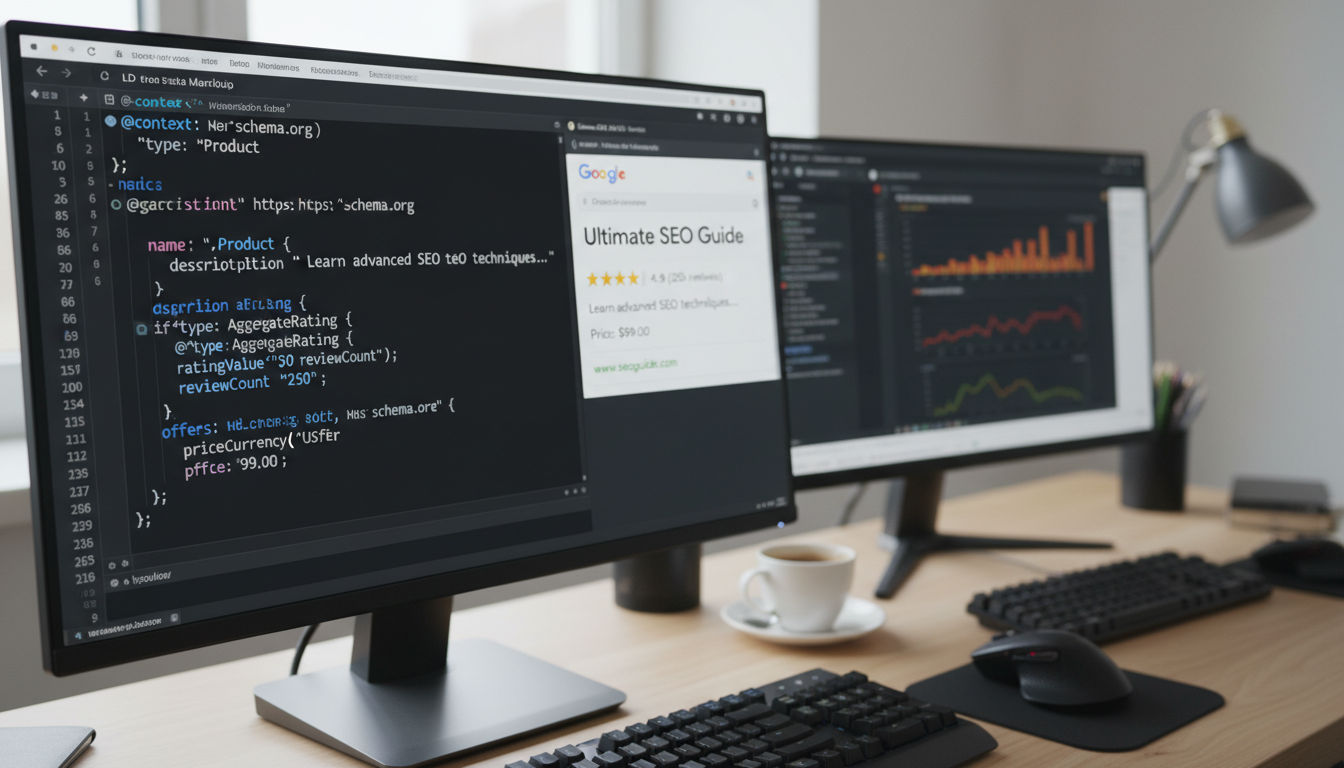
Structured data helps search engines understand your content's meaning and context. It's the technology behind rich snippets, knowledge panels, and other enhanced search results that stand out from standard blue links.
Schema Implementation Review
Schema markup is a vocabulary of tags you add to your HTML to help search engines understand your content. It's like giving search engines a cheat sheet that explains what your content means.
Identify opportunities for schema on your site. Different content types have different schema options. Local businesses should use LocalBusiness schema. Articles need Article schema. Products need Product schema. Services need Service schema.
Implement schema using JSON-LD format. This is Google's preferred method because it keeps structured data separate from HTML, making it easier to implement and maintain. JSON-LD goes in a script tag in your page's head or body section.
Include all relevant properties for your schema type. Don't just add the minimum required fields. The more information you provide, the better search engines understand your content and the more likely you'll earn rich results.
For local businesses in Montreal or anywhere else, LocalBusiness schema is crucial. Include your name, address, phone number, opening hours, service areas, and accepted payment methods. This helps you appear in local search results and Google Maps.
Rich Snippet Opportunities
Rich snippets are enhanced search results that display additional information beyond the title and description. They increase visibility and click-through rates significantly.
Review what rich snippets are possible for your content. Common types include star ratings for reviews, recipe cards with cooking times and calories, event listings with dates and locations, and FAQ accordions.
Implement FAQ schema for question-and-answer content. If you have FAQ pages or blog posts that answer common questions, FAQ schema can make your result display multiple Q&A pairs directly in search results, taking up significant real estate.
Add Review schema for testimonials and reviews. If you display customer reviews on your site, mark them up with Review schema. This can show star ratings in search results, which dramatically improve click-through rates.
Use HowTo schema for instructional content. If you create guides or tutorials, HowTo schema can display your steps directly in search results, often with images. This positions you as an authority and increases visibility.
Consider BreadcrumbList schema. This displays your breadcrumb navigation in search results, replacing the simple URL with a clickable path showing your site's hierarchy. It looks professional and helps users understand where they'll land.
Structured Data Validation
Implementing schema is only useful if you do it correctly. Invalid or incorrectly implemented structured data won't generate rich results and might even confuse search engines.
Test your schema using Google's Rich Results Test. This free tool shows exactly how Google sees your structured data and flags any errors or warnings. Test every page with schema implementation.
Use the Schema Markup Validator for comprehensive checking. This tool validates against the full schema.org vocabulary and catches issues Google's tool might miss. It's especially useful for complex schema implementations.
Monitor structured data in Google Search Console. The Enhancements section shows which pages have structured data, what types you're using, and any errors detected. Fix errors promptly to maintain eligibility for rich results.
Avoid common schema mistakes. Don't mark up content that's not visible to users. Don't mark up every element on your page—focus on the main content. Don't use schema for spammy purposes like fake reviews or misleading information.
Remember that implementing schema doesn't guarantee rich results. Google decides when to show enhanced results based on many factors. However, proper schema implementation is required for eligibility, so it's worth the effort.
Duplicate Content and Redirect Chains
Duplicate content confuses search engines about which version to rank and dilutes your site's authority. Redirect chains waste crawl budget and slow down your site. Both issues are common but fixable.
Duplicate Content Identification
Duplicate content is identical or very similar content appearing at multiple URLs. It's often unintentional, created by technical issues rather than malicious copying.
Check for www versus non-www duplicates. If both www.yoursite.com and yoursite.com load your site, you have duplicate content. Choose one version and redirect the other to it permanently using 301 redirects.
Look for HTTP versus HTTPS duplicates. Similar to the www issue, if both http://yoursite.com and https://yoursite.com work, you're duplicating content. Redirect all HTTP traffic to HTTPS.
Identify trailing slash inconsistencies. Some sites treat /page and /page/ as different URLs. Pick one format and stick with it consistently, redirecting the other version.
Use tools like Copyscape or Siteliner to find duplicate content within your site. These tools crawl your website and identify pages with identical or very similar content, highlighting issues you might miss manually.
Review parameter-based duplicates. E-commerce sites often create duplicate content through filter parameters, sorting options, and session IDs. Use canonical tags to consolidate these variations to your preferred URL.
301/302 Redirect Audit
Redirects tell browsers and search engines that a page has moved. Using the right redirect type is crucial for maintaining SEO value.
Understand the difference between 301 and 302 redirects. 301 redirects are permanent and pass full SEO value to the new URL. 302 redirects are temporary and don't pass full value. Use 301 redirects for permanent moves.
Audit all redirects on your site using tools like Screaming Frog or Ahrefs. These tools identify all redirects, their types, and their destinations. Look for any 302 redirects that should be 301s.
Eliminate redirect chains. A redirect chain occurs when Page A redirects to Page B, which redirects to Page C. Each redirect in the chain slows down page loads and dilutes SEO value. Update all redirects to point directly to the final destination.
Fix redirect loops. These occur when Page A redirects to Page B, which redirects back to Page A. This creates an infinite loop that breaks your site. Identify and fix these immediately.
Remove unnecessary redirects. If you're redirecting to a page that no longer exists or redirects again, clean up these dead ends. Point redirects to active, relevant pages or remove them entirely if they serve no purpose.
Broken Link Detection
Broken links frustrate users and waste search engine crawl budget. They create poor user experiences and signal to search engines that your site isn't well maintained.
Use tools to find broken links. Screaming Frog, Ahrefs, SEMrush, and even free tools like Broken Link Checker can scan your entire site and identify all broken internal and external links.
Prioritize fixing internal broken links. These are completely under your control and relatively easy to fix. Either update the link to point to the correct page or remove it entirely if it's no longer relevant.
Check for broken links on important pages first. A broken link on your homepage or main service pages is more damaging than one buried deep in an old blog post. Fix high-traffic pages first.
Review external broken links. While you can't control external sites, you can update your links when they break. Either find the new location of the content you were linking to or replace it with a different relevant resource.
Set up monitoring for ongoing broken link detection. Links break over time as you update your site and external sites change. Regular monitoring helps you catch and fix broken links before they accumulate.
Conclusion and Next Steps
A comprehensive technical SEO audit might seem overwhelming, but breaking it down into these specific areas makes it manageable. You now have a complete checklist covering everything from crawlability to structured data.
Start with the basics: ensure search engines can crawl and index your site, fix any critical speed issues, and verify your site works properly on mobile devices. These foundational elements have the biggest impact on your search visibility.
Once the basics are solid, move to more advanced optimizations. Implement structured data, optimize your internal linking, and fine-tune your Core Web Vitals. These improvements compound over time, gradually improving your rankings and traffic.
Remember that technical SEO isn't a one-time project. Search engines update their algorithms, web technologies evolve, and your site changes over time. Schedule regular audits—quarterly for most sites, monthly for large or frequently updated sites.
If you're feeling overwhelmed or want professional help, that's completely normal. Technical SEO requires specialized knowledge and tools that many businesses don't have in-house. Check out our previous projects to see how we've helped businesses in Montreal and beyond improve their technical SEO.
The most important step is to start. Even fixing a few critical issues from this checklist will improve your website's performance and search visibility. Prioritize issues that affect user experience first—these tend to have the biggest impact on both SEO and conversions.
Ready to take your website's technical SEO to the next level? Contact us to discuss how we can help you implement these improvements and achieve better search rankings.